Wednesday, July 17, 2019

Windows 10 1809 Font Install Issue

Recently I asked to install fonts in 3000 Windows 10 1809 devices. So normally I have 2-3 scripts to install fonts like batchfile, VBS and customized with MSI file.

Surprisingly all methods failed to install fonts in Windows 10 1809 version.
Tried on search engines and getting many posts related to this people are having issue with installing fonts on Windows 10 1809.

Finally I have used below script for Install fonts on Windows 10 1809-

I have created Font.ps1 and follow the normal Package and distributed. Now its working great for me.


------------------------------------------------------------------------------------ 
$FONTS = 0x14;
$FromPath = ".\fonts";
$ObjShell = New-Object -ComObject Shell.Application;
$ObjFolder = $ObjShell.Namespace($FONTS);
$CopyOptions = 4 + 16;
$CopyFlag = [String]::Format("{0:x}", $CopyOptions);

foreach($File in $(Get-ChildItem -Path $FromPath)){
    If (Test-Path "c:\windows\fonts\$($File.name)")
    { }
    Else
    {
        $CopyFlag = [String]::Format("{0:x}", $CopyOptions);
        $ObjFolder.CopyHere($File.fullname, $CopyOptions);
        New-ItemProperty -Name $File.fullname -Path "HKLM:\Software\Microsoft\Windows NT\CurrentVersion\Fonts" -PropertyType string -Value $File 
    }
}
------------------------------------------------------------------------------------ 

Thanks!!

Tuesday, December 23, 2014

Some new in Windows 8.1 ;)


Have You Heard About NFC in Windows 8.1 ?

NFC (Near Field Communication –Tap to pair Printing ) is new feature in Windows 8.1.
Enabling printing support on an enterprise network can be difficult and confusing, with the worst-case scenario being that a sensitive document is sent to the wrong printer. Like If you are working in very big organization and your nearby lot of printers. If you are not sure which printer is connected with your device and your data is very sensitive. You can’t afford to find printer after printing. With Windows 8.1 Device it’s very easy to find printer with NFC-enabled enterprise printer with a simple tap. With NFC we can connect NFC based printer and Miracast Projectors and many devices which is supports NFC. Bluetooth and Wireless is medium for communication. In Present there is lot of devices like Projector , Smart TV’s , Tablet and smart phones certify miracast  wireless communication.


Wi-fi direct Printing

Wi-Fi Direct printing Wi-Fi Direct is a new standard that allows devices to connect to one another over a wireless network in peer-to-peer fashion, without requiring an access point. Although the most popular uses of the technology involve consumer scenarios such as media playback, the same technology can also be used on enterprise networks to allow easy and secure connections to printers without requiring additional drivers or software on a Windows 8.1 device.

Wednesday, February 5, 2014

Fully Automated LTI Deployment for an Upgrade Computer Scenario

[Settings]
Priority=Default
Properties=MyCustomProperty

[Default]
OSInstall=Y
ScanStateArgs=/v:5 /o /c
LoadStateArgs=/v:5 /c /lac /lae

SkipWizard=YES
DeploymentType=UPGRADE
TaskSequenceID=Enterprise
OSDComputerName=%ComputerName%

LanguagePacks001={3af4e3ce-8122-41a2-9cf9-892145521660}
LanguagePacks002={84fc70d4-db4b-40dc-a660-d546a50bf226}

UILanguage=en-GB
UserLocale=en-GB
KeyboardLocale=0809:00000809
TimeZoneName=GMT Standard Time

UserID=Administrator
UserDomain=DomainName
UserPassword=a_secure_password

Powerusers001=DomainName\proxynetadmin


MDT2013 -> Fully Automated LTI Deployments.

INI settings for Automated LTI Deployments 

Fully Automated LTI Deployment for a Refresh Computer Scenario

[Settings]
Priority=Default
Properties=MyCustomProperty

[Default]
OSInstall=Y
ScanStateArgs=/v:5 /o /c
LoadStateArgs=/v:5 /c /lac /lae

SkipAppsOnUpgrade=YES
SkipCapture=YES
SkipAdminPassword=YES
SkipProductKey=YES

SkipDeploymentType=YES 
DeploymentType=REFRESH

SkipDomainMembership=YES
JoinDomain=DomainName
DomainAdmin=Administrator
DomainAdminDomain=DomainName (Proxynet.local)
DomainAdminPassword=a_secure_password

SkipUserData=YES
UserDataLocation=AUTO
UDShare=\\Servername\Sharename\Directory
UDDir=%ComputerName%

SkipComputerBackup=YES
ComputerBackuplocation=AUTO
BackupShare=\\Servername\Backupsharename
BackupDir=%ComputerName%

SkipTaskSequence=YES
TaskSequenceID=Enterprise

SkipComputerName=YES
OSDComputerName=%ComputerName%

SkipPackageDisplay=YES
LanguagePacks001={3af4e3ce-8122-41a2-9cf9-892145521660}
LanguagePacks002={84fc70d4-db4b-40dc-a660-d546a50bf226}

SkipLocaleSelection=YES
UILanguage=en-GB
UserLocale=en-GB
KeyboardLocale=0809:00000809

SkipTimeZone=YES
TimeZoneName=GMT Standard Time

SkipApplications=YES
Applications001={a26c6358-8db9-4615-90ff-d4511dc2feff}
Applications002={7e9d10a0-42ef-4a0a-9ee2-90eb2f4e4b98}

UserID=Administrator
UserDomain=DomainName (Proxynet.local)
UserPassword=Passw0rd

SkipBitLocker=YES
SkipSummary=YES 
Powerusers001=DomainName\ProxynetAdmin


Friday, January 3, 2014

Windows8 Internet is working but Icon shows No internet Connection

Recently we have deployed Windows 8 and Windows 8.1Surface and Laptops. Everything is working fine but users complain they are able to get Internet ,but the Wifi Lan card showing exclamation mark. Means no Internet connection. Surprising issue. 

We have a setup like this, 
 From Windows users and Internet we have install ISA TMG2012 and Cisco Firewall. Every users behind the Microsoft ISA TMG Proxy and firewall. 
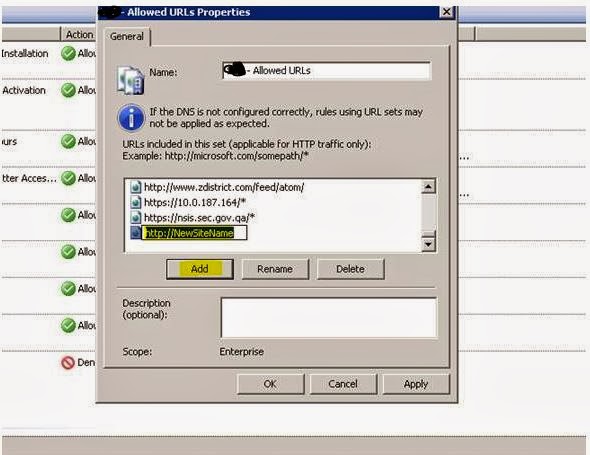
Working with Netmon tool found the msftncsi.com is not authorized to connect Microsoft site. So we have to add “*.msftncsi.com” to the list of TMG trusted site. 

Here is the steps to add “*.msftncsi.com” 

  • Open TMG Console .
  • Go Right Action Pan , Click on URL sets àSelect SEC –Allowed URLS àdouble click.


  •  
  •  
  •  
  • Click on Add and add this url *.msftncsi.com. Apply and OK.  


After apply need to restart affected System ,I am sure Issue will  resolve.

If you are facing the same problem, allow *.msftncsi.com in your firewall, definitely your issue will resolve. 
If you feel it is good say thanks or comment. 

Thanks.


Monday, December 2, 2013

God Mode - Windows 8X Hidden features -Step by Step

One of the more interesting bits of functionality hidden in Windows 8 is "God Mode," a hidden menu that allows power users access to a massive selection of administrative, maintenance, and troubleshooting utilities and features.

1. To reveal God Mode, first bring up File Explorer and then click on the View tab.


2. Make sure that "Hidden items" and "File name extensions" are both checked.


3. Then, on your desktop, create a new folder, and change thatfolder's name to "GodMode.{ED7BA470-8E54-465E-825C-99712043E01C}" (omitting the quotes).


4. The folder's icon will be change Like Control Panel Icon.


5. Double click on it, and Explorer will present you with a ton of little system tools to tweak your machine.


Enjoy Troubleshooting - I know this is old one but lot of friends they are not aware about GOD Mode Features.

Thanks.
Prabhas Upadhyay.

Wednesday, June 26, 2013

IAAS ,SAAS, and PAAS --> Windows Azure.

Infrastructure as a Service (IAAS)

Vendors provide the infrastructure to build solutions, and you rent the hardware such as servers, load balancers, a firewall, and cables. You then configure these remotely and install your solutions on them. You can scale up by requesting more servers and reconfiguring the load balancer without purchasing more hardware. You can scale down at any time by reconfiguring the infrastructure you rented from the cloud service provider. This vendor approach is called Infrastructure as a Service (IaaS) because a customer can rent the infrastructure without having to forecast and provision for the highest possible demand in advance. In this approach, you are responsible for correctly configuring the rented infrastructure.

Software as a Service (SAAS)

In another approach, you can rent a service offered by the vendor and then configure the service by using the interface provided by the vendor, without having to know what infrastructure the vendor uses to provide that service. This approach is called Software as a Service (SaaS) because you pay to use defined services. For example, Microsoft Exchange Online carries a per-mailbox charge. To configure it, you use a web application supplied by the vendor to request mailboxes, and name and dimension them. You receive a password for that user and nothing else is necessary—users can access their mailboxes immediately.

Platform as a Service (PASS)

The third approach is Platform as a Service, or PaaS. In this approach, you rent a platform on which you deploy your applications without configuring the infrastructure and without the limitations of the SaaS approach.
The Windows Azure platform fits best in the PaaS category, because it doesn’t provide access to the underlying virtualization environment or operating system details such as the network interface, IP configuration, and disk management.

Copied.

Windows Azure Step By Step -->

What is Windows Azure ?

Windows Azure is an operating system, which is created for cloud computing. Like all operating systems, its purpose is to provide an abstraction from the physical hardware components and a set of services that every application can use.
In other words, Windows Azure has the same role as a traditional operating system on any hardware platform.

It also has many similarities to—as well as many differences from—a traditional file system. Unlike a traditional operating system such as Windows 7, which abstracts a single box with its CPU, hard disks, keyboard, mouse, and graphics cards, Windows Azure abstracts a set of servers, providing a common platform for building services and applications in a completely virtual environment. In this environment, you work with servers, but you do not install the application on server A or server B; you deploy an application, but not on a specific disk C or D; and you do not have to configure the network card or the virtual directory to expose your services.

Like traditional operating systems, Windows Azure exposes a way to store data, called local storage. However, this storage doesn’t consist of physical hard disks nor is it a traditional network share such as \\servername\sharename. Instead, Windows Azure provides shared storage. It provides CPU power—but not just the processors you can see when you open the case of a physical server. In fact, no one can see the actual disks or machines that host a Windows Azure solution; you just upload the application to the environment and let Windows Azure choose the best servers, disks, and load balancing strategies for a particular solution. You can describe your application’s needs in a logical way. For example, you can request 1 GB of local disk space to cache remote resources, but you cannot force Windows Azure to deploy your solution on a specific disk or server. You can specify that your application needs to listen for HTTPS requests on port 443, but you cannot configure the IP address of the virtual node.

Windows Azure you cannot install on locally, there is no installer available. 

How to connect with Azure world ?

Open your browser and type address  [www.windowsazure.com]


Click on Free Trial
Sign in with Microsoft account /Hotmail account or create new -->


Enter your Credit card details (Dont worry your data and card is safe with Microsoft - Note deduct 1.0 $ from your credit card).

After Setting up of your Windows Azure subscription, you have to open [manage.windowsazure.com] for managing your Azure.
Now you can start managing your Windows Azure.

With Windows Azure you can configure WebSite, Create Virtual Machines as per your requirement, you can start Mobile services , cloud services SQL database, Use Storage, the best thing you can create and manage your Active directory from here.


Ok, next i am going to sharing about IAAS, SAAS and PAAS.

Thanks comments awaited.

Enjoy on Microsoft Cloud.

Thursday, May 30, 2013

OSD- SMSTS.LOG file locations -SCCM

Hey friends,

If we are going to deploy Operating System SMSTS.LOG is very important to review. With smsts.log we can easily understand about our successful or unsuccessful deployment.

The SMSTS.LOG can be stored in one of 7 locations, depending on the stage of the build and the architecture of the OS:

WindowsPE, before HDD format:               x:\windows\temp\smstslog\smsts.log

WindowsPE, after HDD format:                       x:\smstslog\smsts.log

Windows, SCCM agent not installed:         c:\_SMSTaskSequence\Logs\Smstslog\smsts.log

Windows, SCCM agent installed:                     c:\windows\system32\ccm\logs\Smstslog\smsts.log

Windows x64, SCCM agent installed:         c:\windows\sysWOW64\ccm\logs\Smstslog\smsts.log

Task Sequence completed:                               c:\windows\system32\ccm\logs\smsts.log

Task Sequence completed x64:                    c:\windows\sysWOW64\ccm\logs\smsts.log

 -------------------------------------------------------------------------------------------------------------

 Copy Method -->SMSTS.LOG file to Config Manager Server

Common Errror -->
“Task Sequence: Windows 7 Image has failed with the error code (0×80070002). For more information, contact your system administrator or helpdesk operator. The computer will automatically restart in 15 minutes.”

When the Task Sequence: error code (0×80070002) pops up on the screen we need to press the F8 key on our keyboard to pull up command line. 

Run the following set of commands in the command prompt to copy the smsts.log to our SCCM Server.
  • Map a drive from your SCCM server:
net use M: \\SCCMSERVERNAME\C$
  • Run the below syntax to copy the log file to the root of your SCCM server:
copy smstslog.log M:


Enjoy Troubleshooting..

:-) P


Wednesday, April 3, 2013

Windows 8 Deployment - Step 0 to Next


Deploying Windows 8


With Windows 8, you can deploy custom builds to computers through manual and automated processes. To deploy Windows using manual processes, you need to create the required boot and installation images and optionally create recovery images. To automate the deployment process, you need to install Windows Deployment Services. Whether you use a completely manual process, a completely automated process, or some combination of the two, you’ll perform similar administrative tasks. These tasks require you to understand and use the Windows Assessment and Deployment Kit (Windows ADK) for Windows 8 and Windows Deployment Services. The Windows Assessment and Deployment Kit for Windows 8 is available from the Microsoft Download Center (download.microsoft.com) and contains the tools for deploying Windows images, including


■ Application Compatibility Toolkit (ACT)

■ The standard deployment and imaging tools

■ User State Migration Tool (USMT)

■ Volume Activation Management Tool (VAMT)

■ Windows Assessment Services

■ Windows Assessment Toolkit

■ Windows Performance Toolkit (WPT)

■ Windows Preinstallation Environment (Windows PE)


You can use Windows Deployment Services to deploy Windows 8 over a network. You can add the Windows Deployment Services role to any server running Windows Server 2012.Windows 8 and Windows Server 2012 use Windows PE 4.0. Windows PE 4.0 is a bootable startup environment that provides operating system features for the following:


■ Installation  When you install Windows 8, the graphical tools that collect system information during the setup phase are running within Windows PE.

■ Deployment  When a new computer performs a network boot, the built-in Preboot Execution Environment (PXE) client can connect to a Windows  Deployment Services server, download a Windows PE image across the network, and then run deployment scripts within this environment.

■ Recovery  Windows PE enables you to access and run the Startup Repair tool if Windows 8 fails to start because of a corrupted system file.

■ Troubleshooting  You can manually start Windows PE to perform troubleshooting or diagnostics testing if Windows 8 is experiencing problems that can’t otherwise be diagnosed.


Introduction to Windows 8 Administration  


Windows PE is modular and extensible, and it provides full access to partitions formatted using the FAT or NTFS file system. Because Windows PE is built from a subset of Windows components, you can run many Windows applications, work with hardware devices, and communicate across IP networks. Several command-line tools are available in Windows PE, including:


■ BCDBoot  A tool that initializes the boot configuration data (BCD) store and allows you to copy boot environment files to the system partition.

■ Bootsect  A tool for creating and working with boot sectors on hard disks and flash drives.

■ Copype  A tool for creating a directory structure for Windows PE files and then copying the Windows PE media files. Running this tool is a prerequisite for creating bootable Windows PE media.

■ DiskPart  A tool for creating and working with disks, partitions, and  volumes.

■ DISM  An advanced tool for servicing and maintaining images.

■ Drvload  A support tool for adding device drivers and dynamically loading a driver after Windows PE has started.

■ ImageX  A tool for capturing and applying Windows images.

■ Lpksetup  A tool for adding and removing a language pack.

■ Makewinpemedia  A tool for creating bootable Windows PE media.

■ Net  A set of support commands that enables you to manage local users, start and stop services, and connect to shared folders.

■ Netcfg  A tool that configures network access.

■ Oscdimg  A tool for creating CD and DVD ISO image files.

■ Wpeinit  A tool that initializes Windows PE every time it boots.

Copype and Makewinpemedia are new tools that allow you to more  easily create bootable Windows PE media. You use Copype to set up the Windows PE build  environment. After you optimize the build as necessary, you can use Makewinpemedia to create the bootable media, which can be a CD, DVD.